Unlock Your Samsung TV’s Hidden Service Menu: 5 Essential Tweaks
Introduction
Your Samsung TV is packed with features, but did you know it also hides a powerful service menu (often called the MFC menu) behind a secret remote code? This advanced interface gives you access to diagnostic tools, hardware adjustments, and performance optimizations that can solve common issues or improve picture quality. While the standard settings menu covers the basics, the service menu lets you:
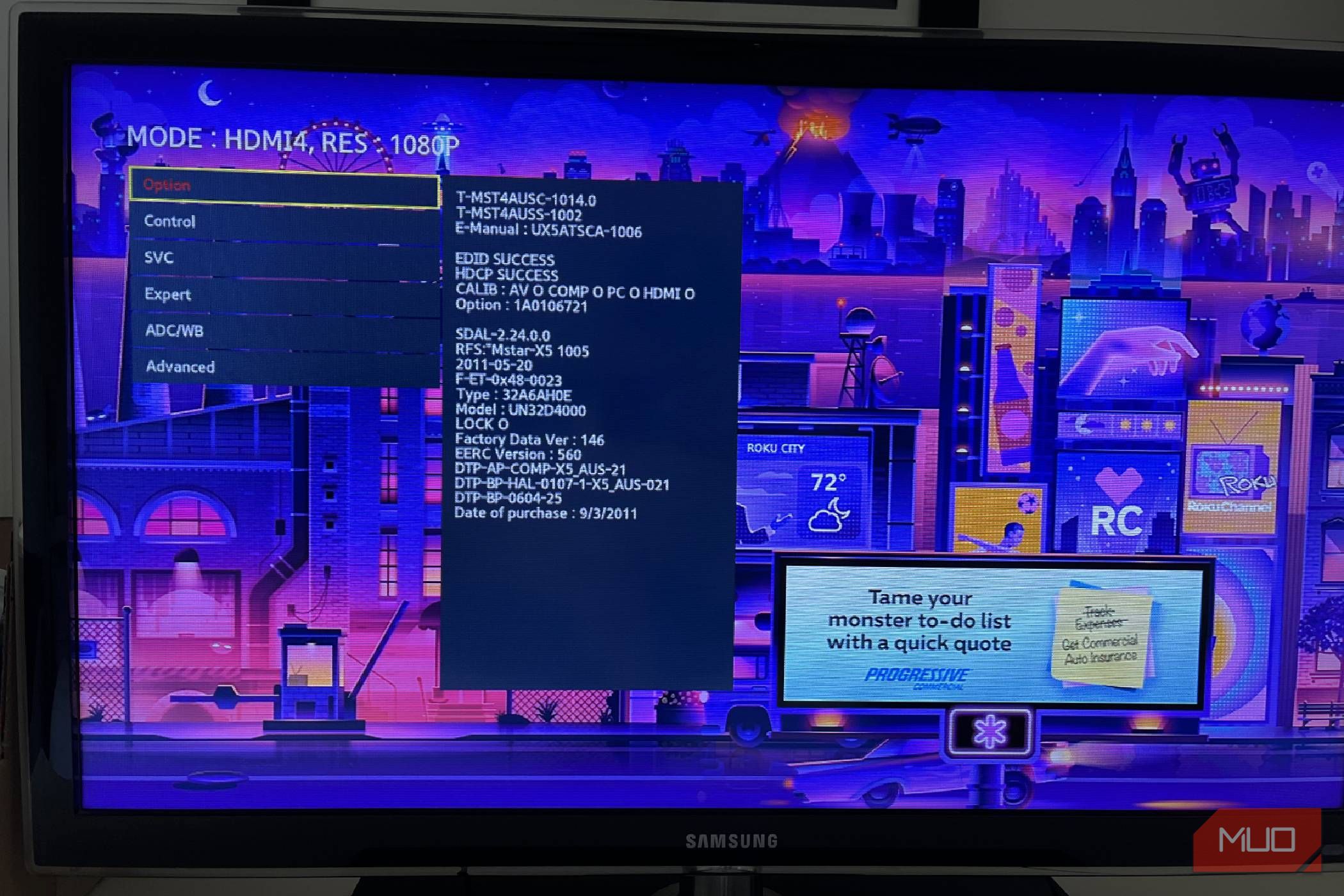
- Disable aggressive power-saving modes that dim the screen
- Fine‑tune backlight values for better HDR performance
- Fix HDMI handshake problems with Deep Color
- Check the TV’s actual usage hours
- Perform a full factory reset when nothing else works
This guide walks you through accessing the menu and using each of those five useful features. Caution: Changing settings here can affect your TV’s performance or warranty, so follow each step carefully.
What You Need
- A Samsung TV (2015 model year or newer)
- The TV’s original remote control (no universal remote – the secret code requires the stock remote)
- A few minutes of uninterrupted time
- Patience – the menu is not designed for casual browsing
- Note: The code differs slightly for older models; if your TV doesn’t respond, search for ‘Samsung service menu code [your model]’
Step‑by‑Step Instructions
Step 1: Enter the Secret Service Menu
With the TV turned on, press the following buttons in quick succession on your remote: Mute → 1 → 8 → 2 → Power. You should see a flash and then a new menu screen appear. If nothing happens, try pressing the buttons a little faster or slower. This code works on most Samsung Smart TVs from 2015 onward.
Once inside, use the Volume Up/Down keys to move through options and the Channel Up/Down keys to change values. Do not change anything you don’t understand.
Step 2: Disable the Power‑Saving Mode
Navigate to Control → Energy Saving (the exact label may vary). Set it to Off. Samsung’s aggressive power‑saving can cause the screen to dim abruptly during bright scenes. Disabling this gives you consistent brightness without losing dynamic range.
Step 3: Fine‑Tune the Backlight for HDR
Go to Control → Panel Drive → Backlight. The default is often 8 or 10. For HDR content, increase it to 15 (or the maximum your panel supports without blooming). This step drastically improves brightness and contrast in movies and games that use HDR.
Step 4: Enable HDMI Deep Color
Select Option → HDMI → Deep Color and set it to On for each HDMI port connected to a 4K/60Hz or HDMI 2.0 device. This corrects color banding and sync issues that sometimes occur with new game consoles or streaming boxes.
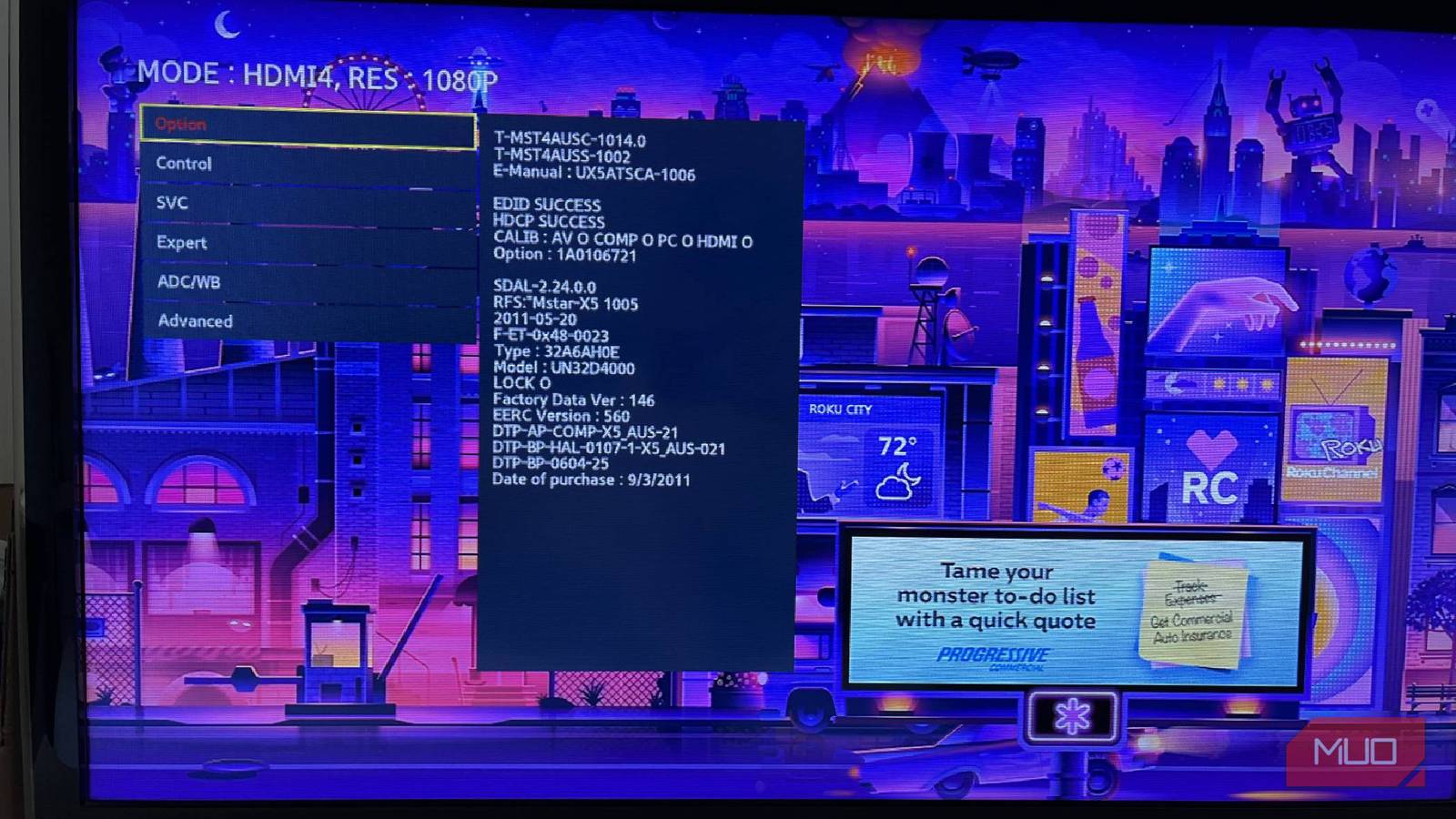
Step 5: Check the TV’s Usage Hours
Look under System → Hour or Information → Total Power On Time. This number shows how many hours the TV has been used. Useful if you’re considering a second‑hand purchase or want to confirm a warranty claim.
Step 6: Perform a Factory Reset (Last Resort)
If your TV is glitching or you want to sell it, go to System → Factory Reset. A warning will appear; confirm with the Enter or OK button. This resets all settings to factory defaults – including the service menu changes you made – so use it only when normal resets fail.
Tips & Warnings
- Write down default values before changing anything. Many service menu items have cryptic names. Take a photo or note the original setting so you can revert if something goes wrong.
- Don’t explore unrelated menus. Functions like “White Balance” or “ADC” are for professional calibration and can ruin your picture if misadjusted.
- Exiting the menu: Simply turn off the TV (via remote or power button) and wait 10 seconds. Turn it back on – the service menu will close automatically.
- Warranty warning: Modifying the service menu can void your warranty. Make changes at your own risk. For TVs still under warranty, contact Samsung support before trying Step 6.
- Model differences: Older Samsung TVs (pre‑2015) use a different code: Info → Menu → Mute → Power. If your TV doesn’t respond to the code in Step 1, try this alternative.
With these five tweaks, your Samsung TV can perform better, show accurate colors, and avoid annoying software glitches. Use the service menu sparingly, enjoy the improved viewing experience, and always keep your remote’s secret code handy.
Related Articles
- How Machine Learning is Reshaping Finance: Key Use Cases and a Scalable Roadmap
- Beyond Signatures: How Machine Learning and Autonomous Agents Are Reshaping Intrusion Detection
- Historic First: Ukraine's Robot-Only Assault and the Billion-Dollar Startup Behind It
- Unlock Personalization Success: Why Your Team Needs a Prepersonalization Workshop First
- 6 Things You Need to Know About Validating Non-Deterministic Agent Behavior in CI
- GitHub Unveils Defense-in-Depth Security Framework for AI Agents in CI/CD Pipelines
- How to Validate Autonomous Agent Behavior in Non-Deterministic Environments
- Fortifying Your AI Coding Workflow Against Supply-Chain Attacks: A Step-by-Step Guide