Why Your Fire TV Stick Keeps Buffering (And the Simple Fix You're Missing)
The Real Reason Behind That Spinning Wheel
You’ve upgraded to a blazing-fast fiber internet plan, yet your Fire TV Stick still freezes during the climax of your favorite movie. The buffering icon appears, and frustration mounts. The common assumption is that your internet speed is to blame, but in most cases, that’s not the culprit. The issue lies not in how fast data enters your home, but in how it travels the last few feet to your streaming device.
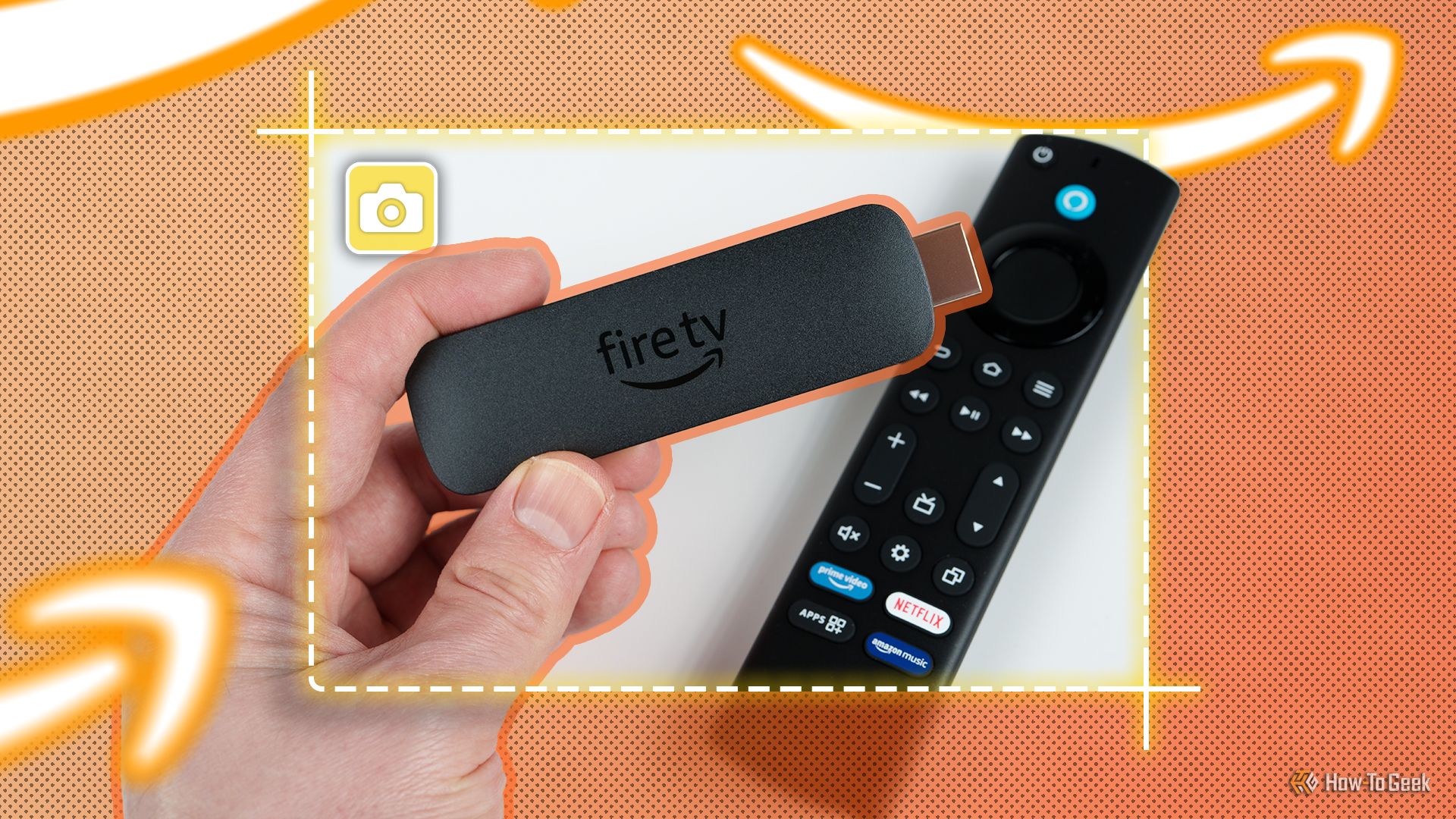
Why Wi-Fi Isn’t Always the Answer
Wi-Fi is convenient, but it’s also susceptible to interference from walls, other electronics, and even your neighbor’s network. The Fire TV Stick, tucked behind your TV, often has a weak Wi-Fi antenna. Even if you have a top-tier router, the signal can degrade before reaching the stick, causing periodic buffering. This is especially true for 4K streams, which require a stable, high-bandwidth connection.
The Hidden Port on Your Fire TV Stick
Here’s what many users overlook: newer Fire TV Stick models come with a micro USB port (or USB-C on some versions) that is not just for power. This port can also accept an Ethernet adapter, transforming your streaming experience from wireless to wired. Amazon sells an official Ethernet adapter, and third-party versions are widely available. By connecting via Ethernet, you bypass Wi-Fi entirely, ensuring a stable, uninterrupted connection.
The Simple Setup for Buffer-Free Streaming
Step 1: Get the Right Adapter
Purchase an Ethernet adapter compatible with your Fire TV Stick. The official Amazon adapter works with Fire TV Stick 4K, Fire TV Stick 4K Max, and other recent models. Check your device’s specs or user manual to confirm compatibility.
Step 2: Connect the Hardware
- Plug the adapter into the micro USB port on your Fire TV Stick.
- Connect an Ethernet cable from your router or switch to the adapter.
- Power the adapter using the included USB cable and power brick (some adapters require external power).
Step 3: Configure Your Fire TV Stick
- Go to Settings > Network on your Fire TV Stick.
- Select Ethernet instead of Wi-Fi. The device will automatically detect the wired connection.
- Once connected, you’ll see a confirmation message. Your streaming quality will improve immediately.
Additional Tips for Optimizing Your Streaming
If an Ethernet cable isn’t feasible due to distance, consider a powerline adapter, which uses your home’s electrical wiring to carry network data. Alternatively, move your Wi-Fi router closer to the TV or use a Wi-Fi mesh system. However, the Ethernet adapter remains the most reliable solution for eliminating buffering on your Fire TV Stick.

Another overlooked factor is the HDMI extender included with your Fire TV Stick. Using it can position the stick away from the TV’s metal casing, reducing interference. Combined with a wired connection, you’ll enjoy seamless 4K streaming without the dreaded spinning wheel.
Conclusion
Don’t let buffering ruin your home theater experience. The solution is often simpler than you think: a wired Ethernet connection to your Fire TV Stick. By using that hidden port and a small adapter, you can sidestep Wi-Fi issues and enjoy buffer-free streaming, even with the most demanding 4K content. It’s a low-cost fix that delivers high-impact results.
Related Articles
- Building a Homemade Wire EDM Machine: From CNC Router to Precision Gear Cutting
- 7 Essential MacBook Deals to Grab in May 2026: Your Ultimate Buyer's Guide
- Mastering Google Pixel's Now Playing: Your Complete Guide to the Offline Song Identifier
- 6 Key Features of the Aiper EcoSurfer S2 Pool Skimmer That Make It a Top Contender
- AI Hallucinations Revealed: New Classification Highlights Extrinsic Fabrication Risks
- How to Mitigate Extrinsic Hallucinations in Large Language Models
- How to Uncover Hidden Vulnerabilities in End-of-Life Open Source Components
- Rediscovering the American Dream: A Conversation with Alexander Vindman