Mesh Wi-Fi Not Delivering? A Step-by-Step Guide to Diagnosing and Fixing Connection Issues
Introduction
You invested in a three-node mesh Wi-Fi 7 system expecting seamless coverage. Your phone shows four bars from every corner of the house, yet Zoom calls drop, streaming buffers, and you keep seeing ‘no internet connection’ warnings. This guide helps you identify why your mesh system is failing and how to fix it—step by step.
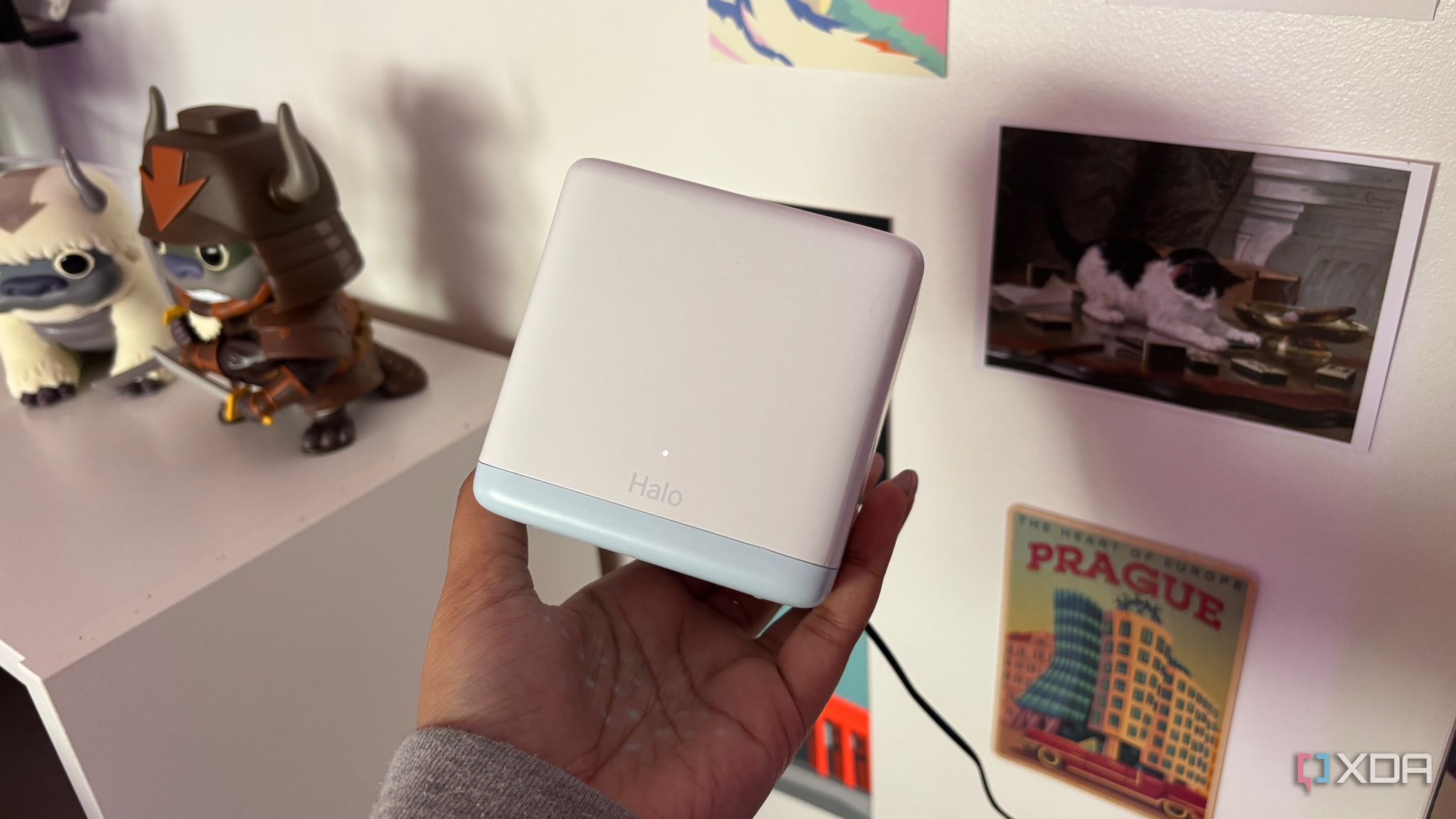
What You Need
- Mesh Wi-Fi system (e.g., 3-node Wi‑Fi 7)
- Smartphone or laptop with Wi‑Fi capability
- Admin access to your mesh system (app or web interface)
- Wi‑Fi analyzer app (e.g., NetSpot, Wi‑Fi Scanner) – optional but helpful
- Ethernet cable (for wired backhaul testing)
Step‑by‑Step Troubleshooting Guide
Step 1: Verify Your Actual Performance, Not Just Signal Bars
Signal bars indicate connection strength, not quality. Open a speed test app while standing closer to the main node, then move to a satellite node. If speeds drop significantly or jitter spikes, performance issues exist. Use a Wi‑Fi analyzer to measure signal‑to‑noise ratio rather than bars alone.
Step 2: Optimize Node Placement
Mesh nodes work best within line‑of‑sight of each other and away from obstructions. Place each node roughly halfway between the previous node and its coverage area. Avoid corners, floors, or behind large metal objects. If nodes are too far apart, the backhaul weakens, causing dropouts. Use the admin app’s placement test if available.
Step 3: Identify Interference Sources
Common culprits: microwaves, cordless phones, baby monitors, and neighboring Wi‑Fi networks. Use a Wi‑Fi analyzer app to scan for crowded channels. If you see many overlapping networks, switch to less congested channels (see Step 5). Move nodes away from known interference sources.
Step 4: Update Firmware and Reboot
Outdated firmware can cause instability. Log into your mesh system’s admin interface and check for updates. Apply all updates and then reboot the entire system by unplugging the main node for 30 seconds, then reconnecting. Wait for all nodes to sync.
Step 5: Adjust Channel and Bandwidth Settings
Most mesh systems auto‑select channels, but manual tweaking helps. For the 2.4 GHz band, choose channels 1, 6, or 11 (non‑overlapping). For 5/6 GHz, use a Wi‑Fi analyzer to find the least congested channel. Disable channel bonding if interference is high—this reduces speed but improves reliability.

Step 6: Check the Backhaul Connection
Wireless backhaul can be flaky. In your admin app, check the connection type between nodes. If any node shows a weak wireless backhaul rating, try moving it closer or consider using Ethernet. Temporarily connect two nodes with an Ethernet cable to test stability. If performance improves, wired backhaul is your answer.
Step 7: Enable Wired Backhaul Where Possible
For the best performance, connect satellite nodes to the main router via Ethernet (MoCA or powerline adapters also work). This eliminates wireless backhaul bottlenecks and reduces latency. Even one wired node can improve overall mesh stability.
Step 8: Configure Quality of Service (QoS) Settings
QoS prioritizes traffic for critical apps like Zoom or streaming. Enable QoS in your mesh app and set high priority for video conferencing and streaming. This prevents other devices from hogging bandwidth. Some systems allow per‑device limits—useful if someone is downloading large files.
Step 9: Test with Fewer Nodes
Too many nodes can cause interference or improper handoffs. Temporarily disable one satellite node and see if performance improves. If so, remove the extra node or adjust its placement. For most homes, 2–3 well‑placed nodes are plenty.
Tips for Long‑Term Success
- Use a wired backhaul whenever possible—it’s the single biggest improvement you can make.
- Keep firmware updated automatically if your system supports it.
- Place nodes at eye level (e.g., on shelves) rather than on the floor.
- Separate node placement from other electronics by at least 3 feet.
- Monitor for channel congestion every few months, especially in dense neighborhoods.
- If all else fails, consider replacing your mesh system with a different brand that offers better backhaul or dedicated radios.
Related Articles
- Python Insider Blog Transitions to a Modern, Git-Powered Platform
- Python 3.15 Alpha 6: A Sneak Peek at Next-Generation Features and Performance Boosts
- AI Coding Agents Take Center Stage: JetBrains × Codex Hackathon Winners Revealed
- How to Flatten a List of Lists in Python: A Complete Guide
- 5 Exciting Enhancements in the Python VS Code Extension – March 2026
- CommitAI: Your Offline Git Assistant Powered by Gemma 4
- Mastering the Factory Method Pattern in Python: A Practical Guide
- The Slow Grind and the Sudden Leap: How Programming Evolves